LLM Usage
ML cube Platform uses large language models (LLMs) in RAG Evaluation, Topic Modeling, Multi-Turn Analysis, and LLM Security. Provider integrations supply the credentials for these analyses, while LLM Usage settings let you allocate weekly token limits to projects and their tasks.
Before you start
The modules in ML cube Platform can require some LLM Provider integrations, see Required LLM integrations by module for the provider requirements.
Configure credentials in the project's Integrations page, then configure usage limits as described below. Credentials belong to a project and can satisfy the requirements of multiple tasks in that project.
Open LLM Usage settings
There are two views for LLM Usage limits depending on the User role and its scope:
| View | Where to open it | What you can change |
|---|---|---|
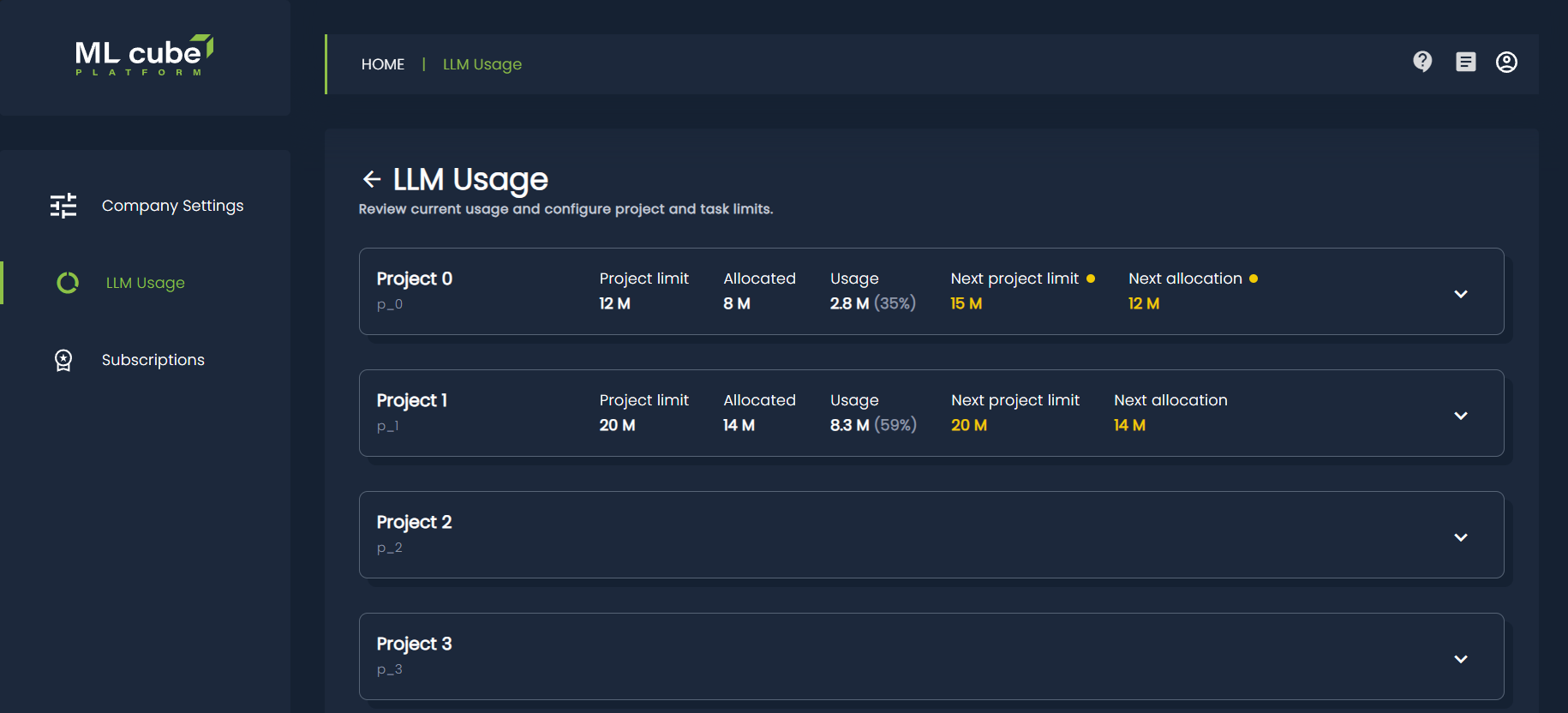
| Company | LLM Usage in the company settings menu | Project limits and task allocations across the company. Company owners and administrators can manage these limits. |
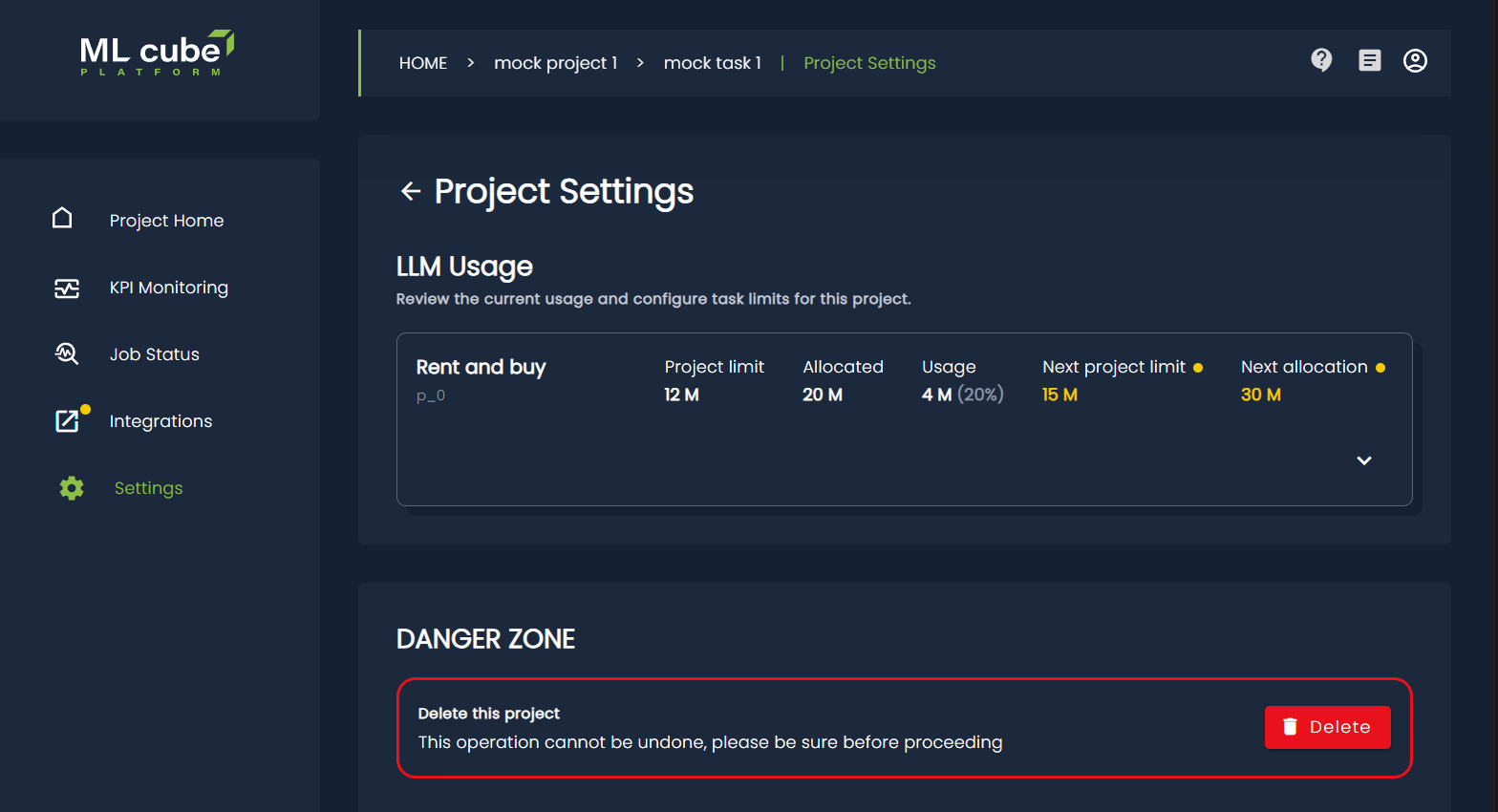
| Project | Settings > LLM Usage in the project menu | Task allocations within that project's limit. Project owners and administrators can manage task limits; project users and viewers can read them. Company owners and administrators can also manage them. |
The project view displays the project limit as a reference value. To change that limit, use the company view.
Understand limits and usage
The LLM usage limit is applied on window basis, the current window refers to the present and the usage is compared against it, the next window refers to the next iteration. At the end of the current window the cumulative usage is reset.
The supported window timespan is Week, and the metric unit is Million tokens. For example, a limit of 2.5 represents 2,500,000 tokens. Limits express token quantities rather than monetary amounts.
New projects and tasks start with a limit of 0. Assign limits explicitly before relying on a task's token allocation.
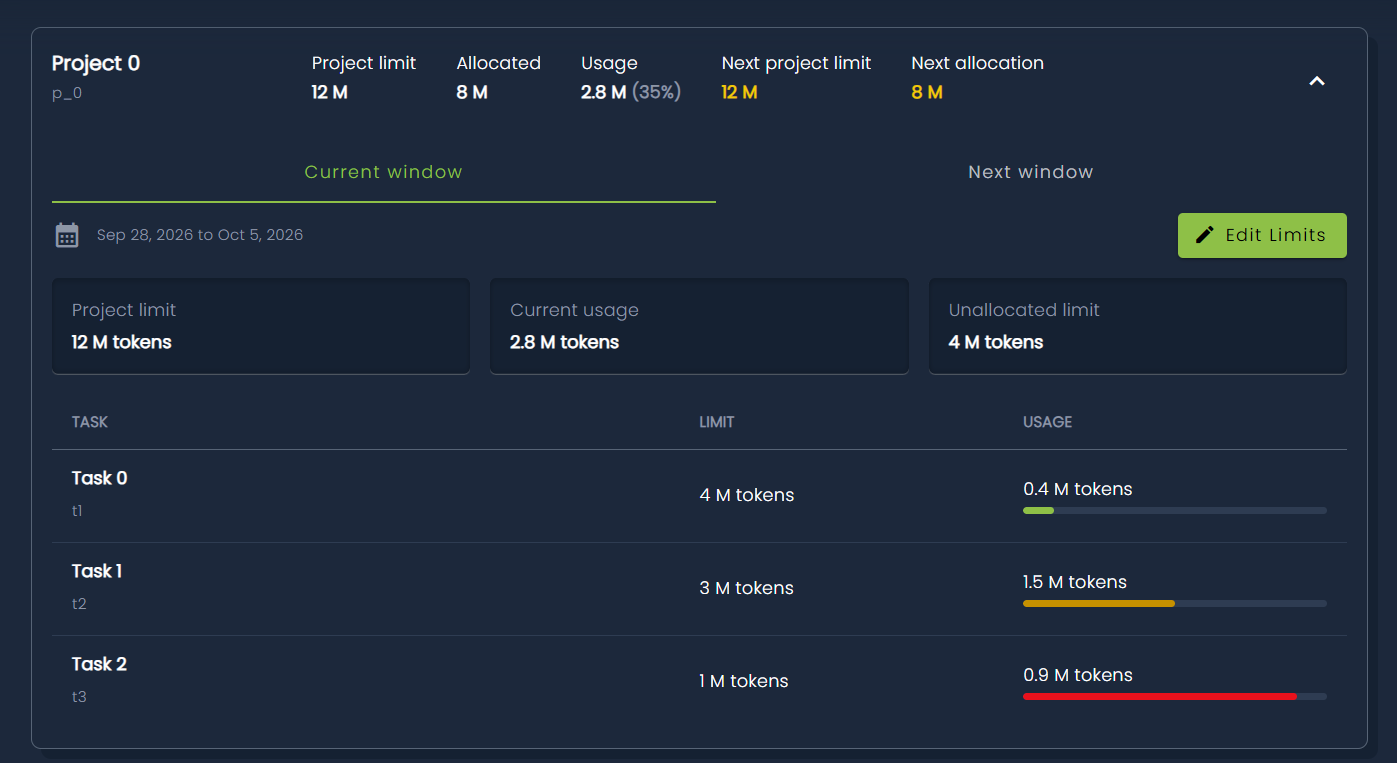
Expand a project card to review its settings:
| Field | Meaning |
|---|---|
| Project limit | The total token allocation available to distribute among the project's tasks. |
| Allocated | The sum of the task limits. |
| Unallocated limit | The project limit minus the sum of task limits. This balance is available for allocation to tasks. |
| Task limit | The token allocation for a task, shared by its LLM modules. |
| Usage / Current usage | The usage value supplied for the current window. Task rows include a usage bar. |
| Next project limit / Next allocation | The effective allocations for the next window when scheduled changes exist. |
The usage percentage in the collapsed project card compares task usage with the allocated total. Each task's usage bar compares its usage with its own limit.
Edit current limits
Note
Current window limits can only be changed if there are no limits configured for the next window.
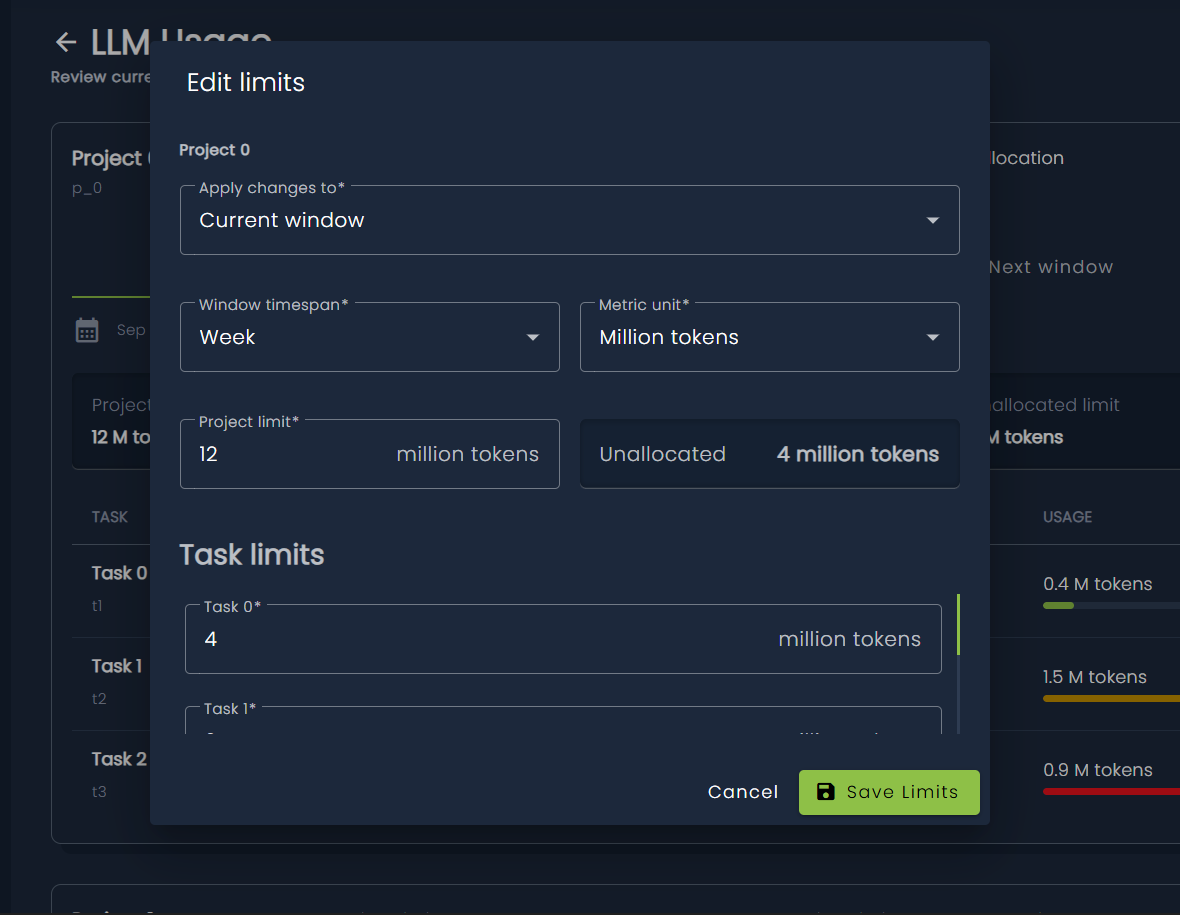
- Expand the project and click Edit limits.
- Select Current window under Apply changes to.
- In the company view, set the Project limit. In either view, enter the Task limits in million tokens.
- Check the unallocated balance and click Save limits.
The sum of all task limits must not exceed the project limit. For a current-window change, each positive task limit must also be at least 120% of the task's reported current usage. A zero task limit is permitted.
For example, a project limit of 5 can cover task limits of 2 and 1.5, leaving 1.5 million tokens unallocated. If a task's reported usage is 1, its positive current-window limit must be at least 1.2.
Current-window changes take effect immediately. Editing an allocation does not start a new usage week.
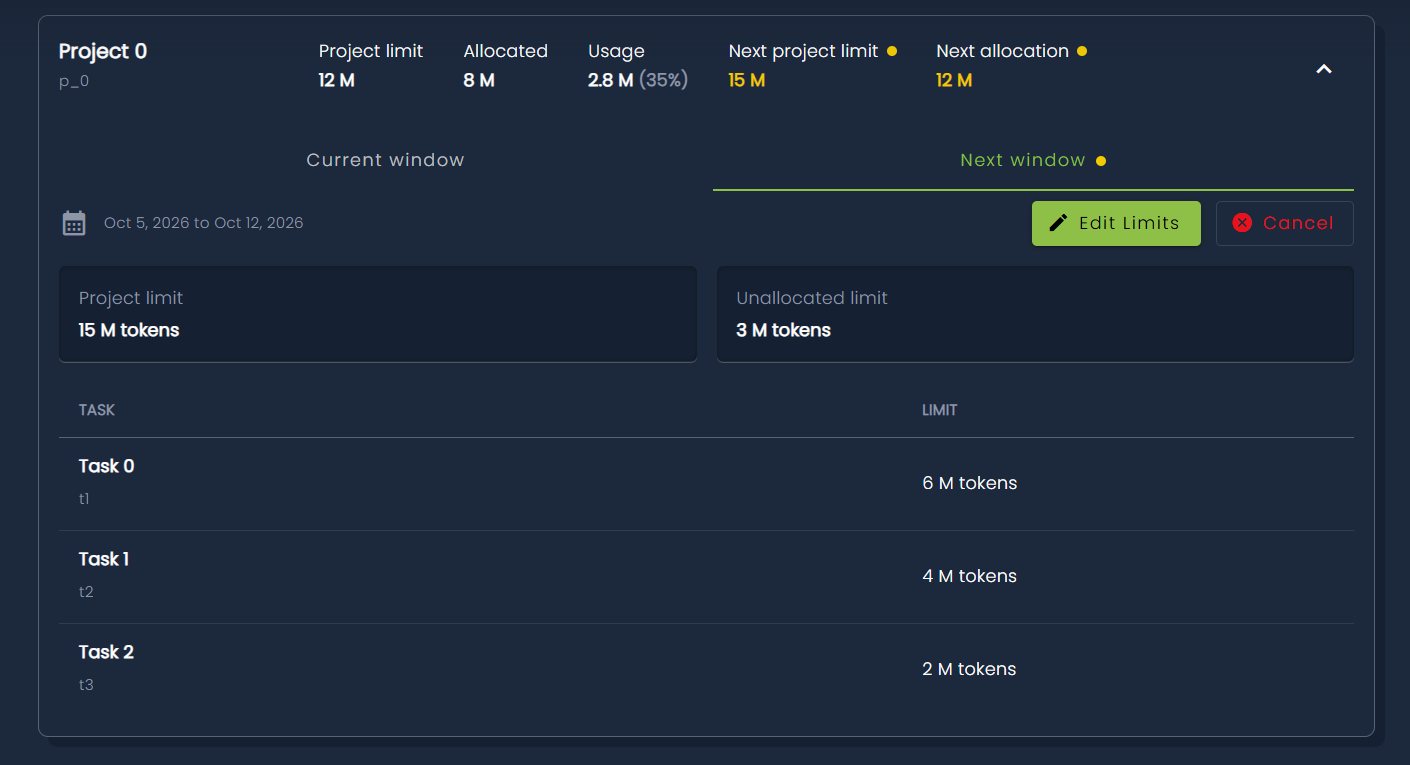
Schedule the next window
To prepare future allocations, click Edit limits, choose Next window under Apply changes to, enter the limits, and click Save limits. Scheduled changes activate at midnight on the next Monday according to UTC time reference.
Once changes are scheduled, expand the project to switch between Current window and Next window. A notification dot marks scheduled limits. Values without a scheduled replacement retain their current allocation. The next-window view shows allocations without current usage bars.
Use Edit limits in the Next window tab to revise the schedule. Next-window allocations must still fit within the project limit; the current-usage 120% rule applies only to current-window changes.
Use Cancel in the next-window view to cancel scheduled changes. The company view cancels both project and task changes for that project. The project view cancels only task changes; a scheduled project limit remains, and the restored task allocations must fit within it.