Exports
Exports package task data and analysis results into portable files that can be used outside ML cube Platform. An export selects its content in one of two ways:
- By batch range: one or more content bundles for an inclusive range of data batches.
- By report: a list of specific reports, of any type and in any number, chosen independently of the data batches.
Open a task and select Exports from the task menu. The page is available when the Export feature is enabled for the platform and the company subscription. Users with read access to the project can view exports and obtain download links; creating an export requires permission to work on the project.
Bundles
A bundle is a family of related content, not necessarily a single file. The bundles offered when creating an export by batch range depend on the task type, its data structure, the enabled modules, and the company subscription.
| Bundle | Contents and availability |
|---|---|
| Data | Task samples from the selected batches in Parquet format. For image tasks, the bundle can also contain ZIP archives of images and novelty heatmaps when they are available. |
| Dynamic clustering | Available for tasks other than time-series tasks. It can contain Dynamic clustering results, transition results, and active microcluster results in Parquet format. Only results available for the selected range are included. |
| RAG evaluation reports | Available for RAG tasks when RAG evaluation is enabled. It contains evaluation metrics from reports covered by the selected batches in Parquet format. |
| LLM security reports | Available for RAG tasks when LLM Security is enabled. It contains the available security report results for the selected range in Parquet format. |
| Topic modeling reports | Available for text tasks when Topic Analysis is enabled. It contains the available topic modeling results for the selected range in Parquet format. |
Selecting a bundle does not guarantee that every possible file in that bundle will be produced. Files are generated only for data or analysis results that exist in the selected batch range. An export can therefore complete with fewer files than expected, or with no downloadable files.
Report types
When exporting by report, each selected report produces its own file.
| Report type | Format | Availability |
|---|---|---|
| RAG evaluation reports | Parquet file | RAG tasks with RAG evaluation enabled. |
| LLM security reports | Parquet file | RAG tasks with LLM Security enabled. |
| Topic modeling reports | Parquet file | Text tasks with Topic Analysis enabled. |
| Multi-turn reports | ZIP archive of JSON files | RAG and AI Agents tasks configured as multi-turn, when monitoring is included in the subscription. See Multi-Turn Analysis. |
A multi-turn report archive contains a summary.json file with the report summary and, for every session in the report, one JSON file per turn with its analysis, under sessions/<session id>/.
Note
Multi-turn reports can be exported only by report: they are not available as a bundle in a batch range export.
Only completed reports whose results are stored can be exported. If a selected report is deleted after the export is created, the export still completes but contains no file for that report.
Create an export
- Open the task and select Exports.
- Select Create new export. The New export panel opens on the side of the page.
- Choose By batch range or By report and fill in the selection, as described below.
- Check the summary at the bottom of the panel, then select Create export.
The toggle between the two modes is shown only when the task has reports that can be exported. If the task has no data batches, only the export by report is offered. Only the fields of the selected mode are validated and sent.
If the request fails, the panel stays open so the same selection can be submitted again. Closing the panel by clicking outside it keeps the current selection, which is restored when Create new export is selected again.
By batch range
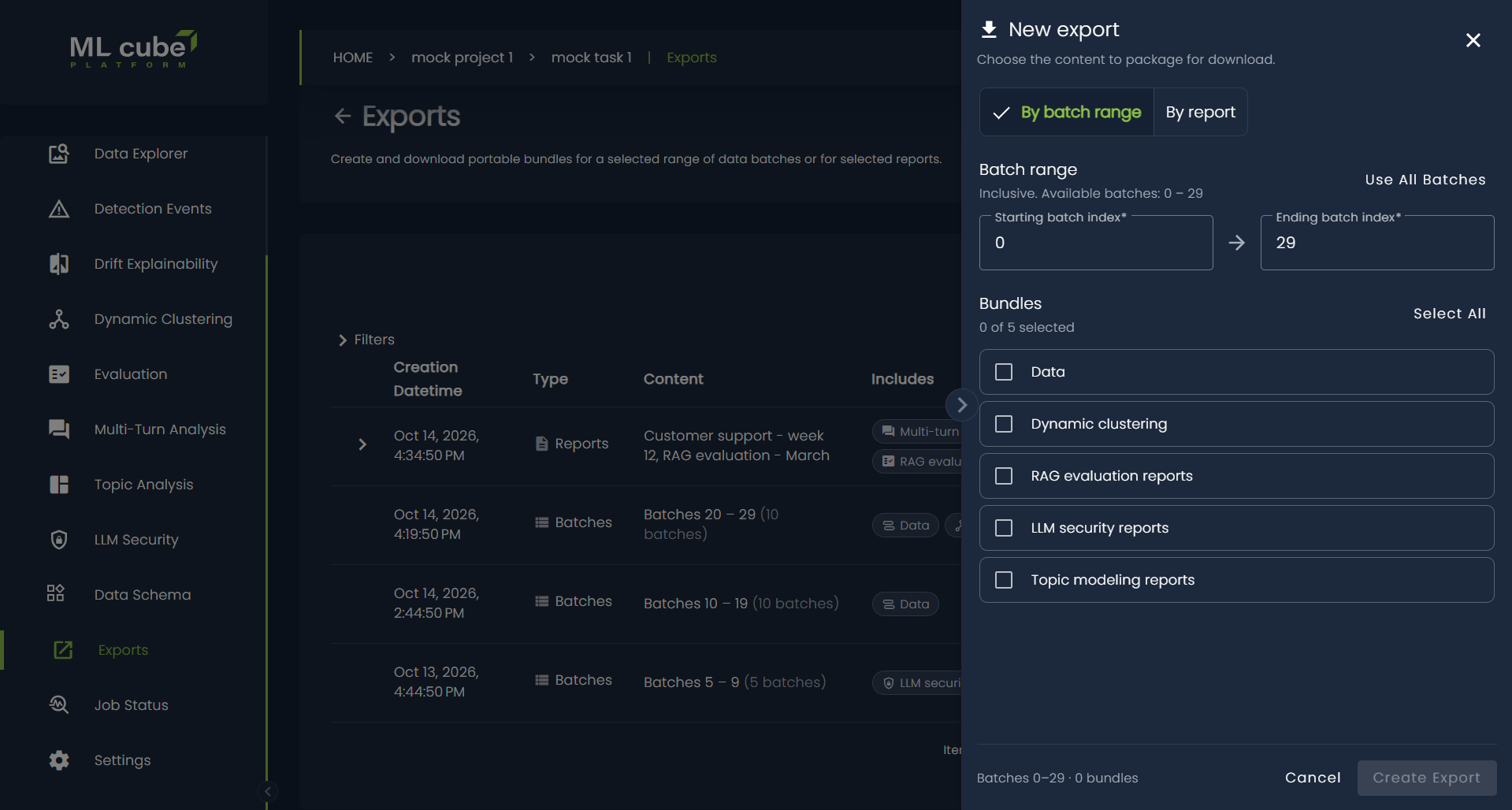
- Enter the Starting batch index and Ending batch index. Both ends of the range are included. Select Use all batches to fill in the full range, from batch
0through the highest available batch index. - Select one or more Bundles. Use Select all to select every available bundle, or Clear to deselect them.
Both indices must be non-negative whole numbers, neither can exceed the maximum shown in the panel, and the ending index cannot be lower than the starting index. The summary shows the selected range and the number of bundles, for example Batches 0–4 · 3 bundles.
By report
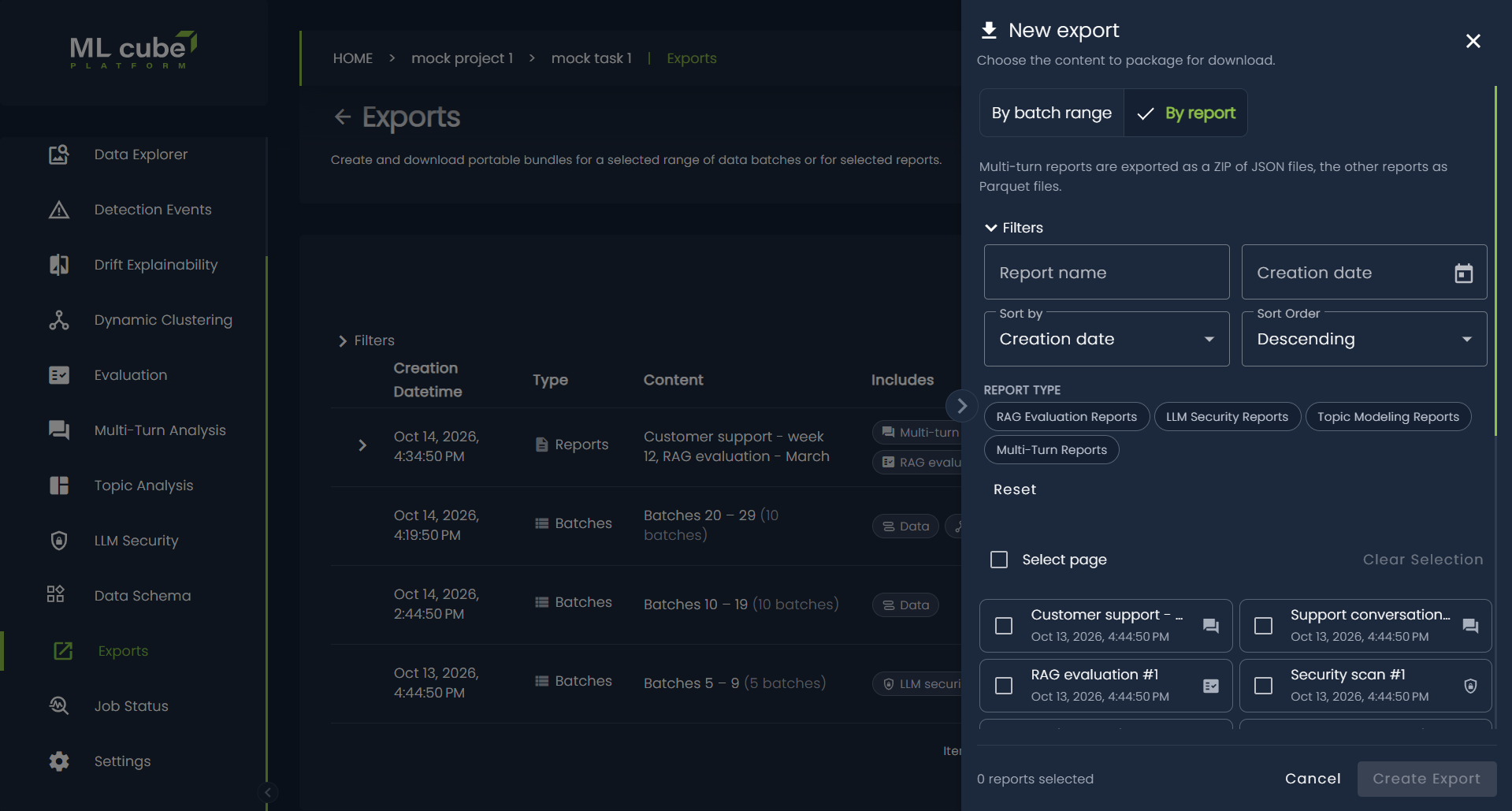
The panel lists the task reports that can be exported. Each entry shows the report name, its creation date, and an icon for its report type.
- Narrow the list if needed:
- Report name shows the reports whose name contains the entered text, ignoring case.
- Creation date shows the reports created in the selected date range.
- Report type chips, shown when the task has more than one report type, restrict the list to the selected types. With no chip selected, every type is shown.
- Sort by orders the list by Creation date (the default), Name, or Report type, and Sort Order sets ascending or descending order. Newest reports are shown first by default.
- Select the reports to export. Use Select page to select or deselect all the reports on the current page, and Clear selection to start over.
The selection is kept when changing page or filters, so reports from different pages, types, and dates can be combined in one export. The summary shows how many reports are selected. Use the Reset action of the filters to clear them.
Export generation runs in the background. After the request is accepted, the panel closes and the list is reloaded, with the new export at the top in the in queue status. Select the Reload exports icon to load its latest status; the list does not update automatically.
Export a single report
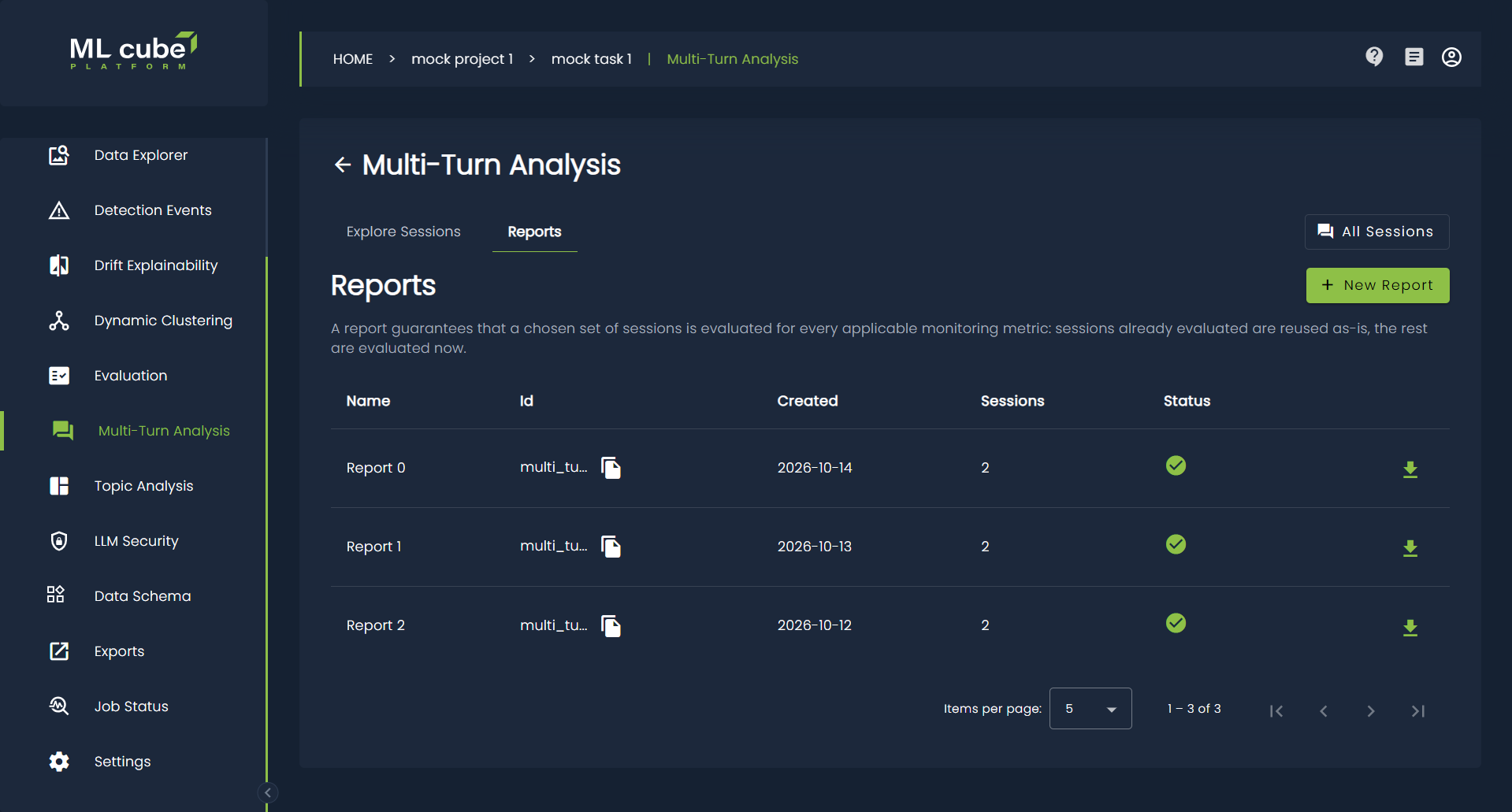
A single report can also be exported directly from the module page where it is listed. The export button is in the actions column of the reports table of the RAG evaluation, LLM Security, Topic Analysis, and Multi-Turn Analysis pages. It is available once the report is completed, and it is hidden when the Export feature is not enabled.
- Select the export icon in the row of the report.
- Review the report name, type, and file format, then select Export.
- Wait while the export progresses through the Queued, Processing, and Ready steps.
- When the export is ready, copy the download link of the file, or select Download JSON to save the link manifest.
The window can be closed at any time: the export keeps running and is listed in the Exports page, like any other export by report. Select View all exports to open that page. If the export takes more than five minutes, the window stops waiting and offers Go to Exports. If the export fails, the window shows the reason and offers Retry.
Export statuses
| Status | Meaning | Available action |
|---|---|---|
| in queue | The export request is waiting to be processed. | Reload the list later. |
| running | The selected content is being collected and written. | Reload the list later. |
| completed | Processing finished. | Generate download links before the expiration date. |
| failed | Processing stopped because of an error. | Select the error-details icon to read the failure message. |
| expired | The export has passed its retention period. | Create a new export if the files are still needed. |
Each export has an Expiration date. Exported files are retained for three days from the export's creation time. After that date the export is shown as expired and its files can no longer be downloaded.
Note
A failed export cannot be resumed from the list. Review its error details, correct the underlying data or module issue when possible, and create a new export.
Download exported files
Download links can be generated only for a completed export that has not expired.
- Find the completed export in the list.
- Select the link icon in the Status column.
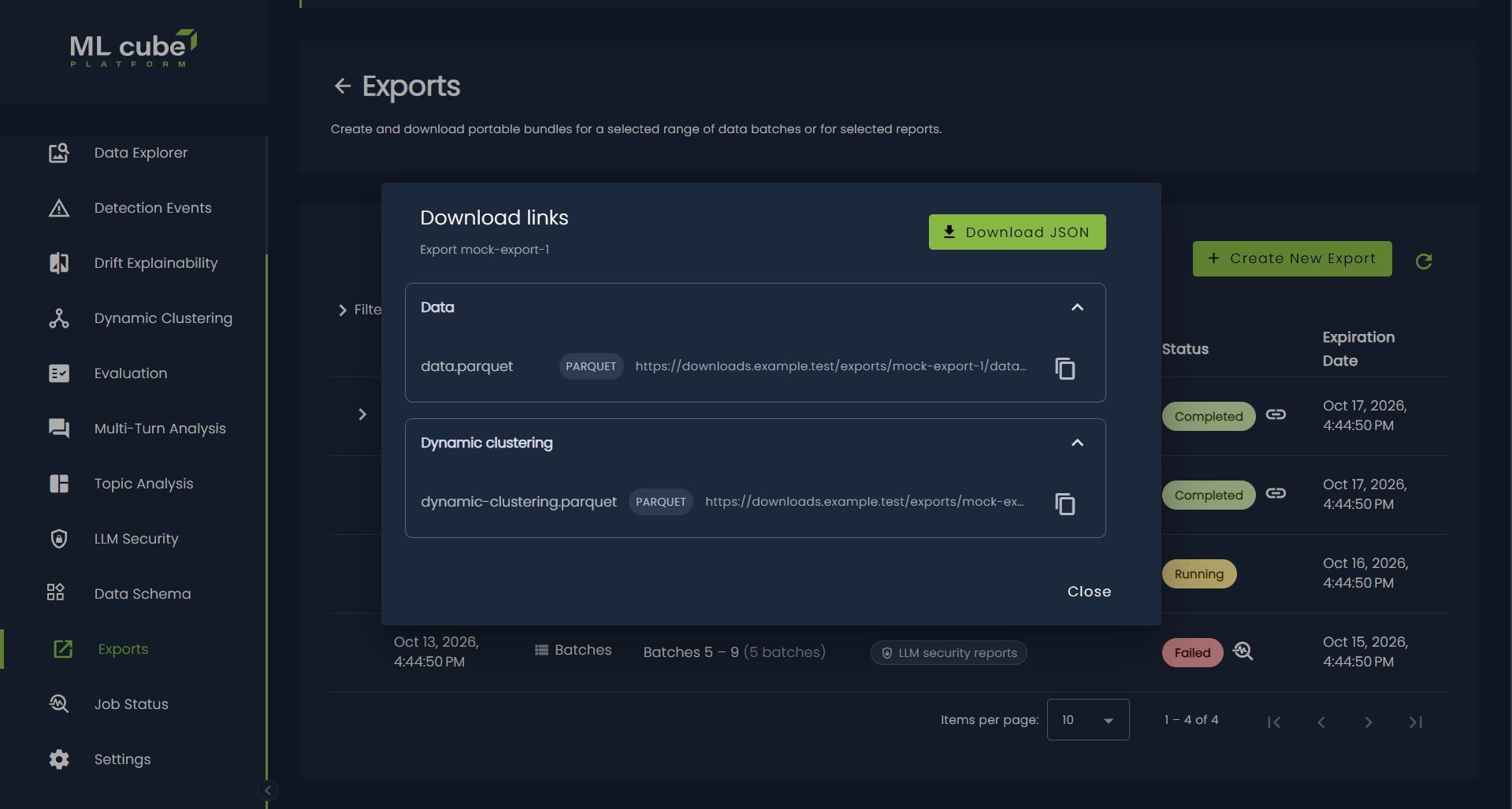
- In the Download links dialog, expand or collapse each bundle group as needed.
- Select the copy icon beside a file and open the copied URL to download that file.
The dialog identifies every file by its bundle name and file type. Select Download JSON to save all the displayed links and their metadata in a file named export-<export-id>-links.json. This JSON file is a link manifest; it does not contain the exported data itself.
Replace this comment with:
Warning
Download links provide direct access to exported task content. Treat them as sensitive, share them only with authorized recipients, and do not place them in public tickets, chat rooms, or source repositories. Generated links may stop working before the export itself expires; generate a fresh set from the completed export when needed.
Find an export
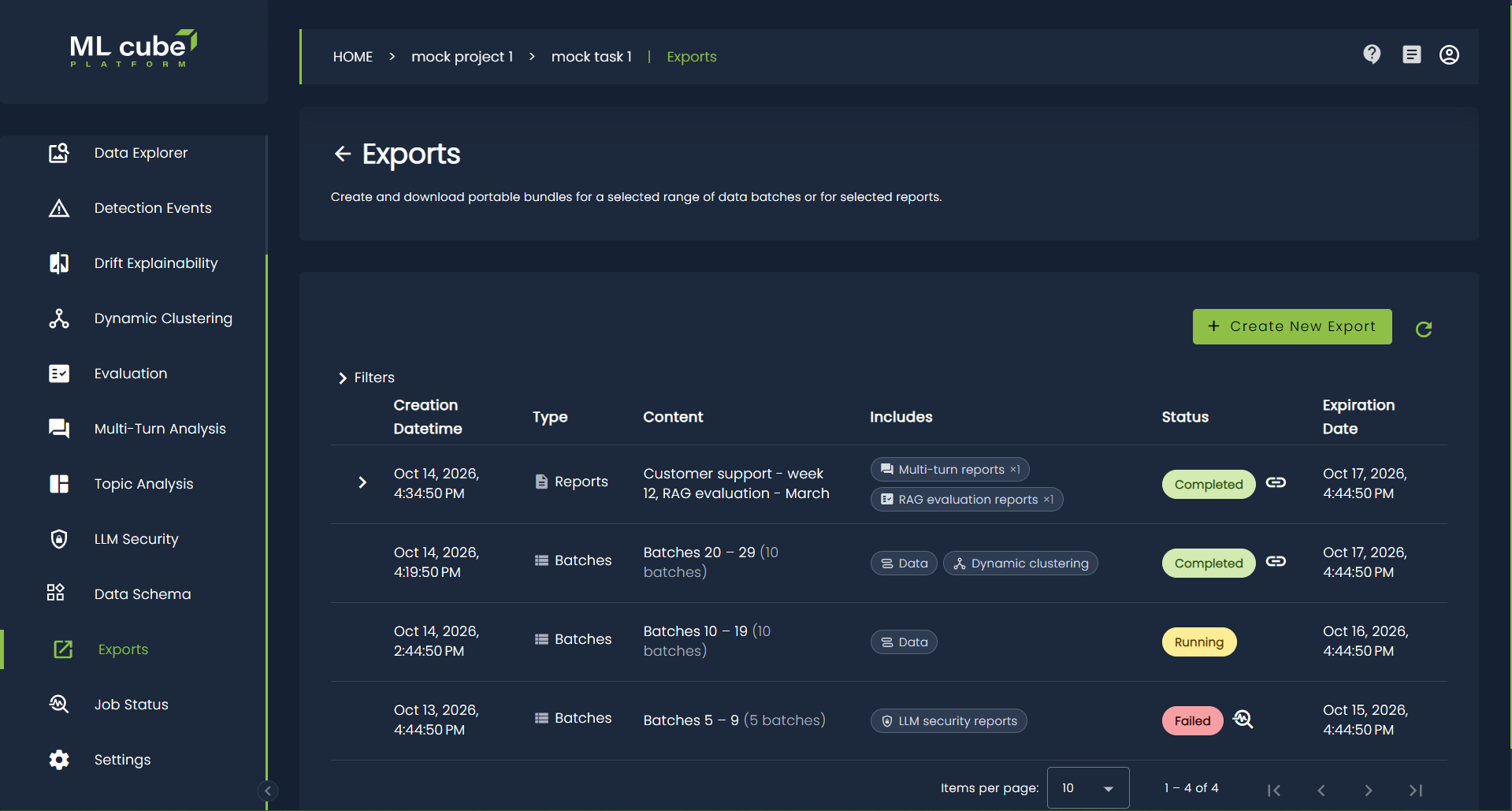
Exports are listed from newest to oldest. Each row shows:
- Type: Batches for exports by batch range, Reports for exports by report.
- Content: the batch range and the number of batches, or the names of the included reports. When there are more than two reports, the remaining ones are summarized as
+N; hover over it to read their names. - Includes: the exported bundles, or the report types with the number of reports of each type.
- Status and Expiration date.
Expand a report export with the arrow at the start of its row to see every included report with its type and file format.
Use the filters to narrow the history:
- Type shows only exports by batch range (Batches) or by report (Reports).
- Includes shows the exports that contain at least one of the selected bundles or report types. When Type is set to Reports, the filter is named Report types and offers only report types.
- Report name shows the report exports that include a report whose name contains the entered text, ignoring case.
- Creation date includes exports created on any day in the selected date range.
- Starting batch index includes exports whose starting index is equal to or greater than the entered value.
- Ending batch index includes exports whose ending index is equal to or lower than the entered value.
- Active exports only is selected by default and hides exports whose expiration date has passed. Clear it to include the full export history.
When both batch filters are set, the results are exports whose complete batch range fits within those boundaries. Filters that cannot apply to the selected type are cleared and disabled: the batch filters for report exports, and Report name for batch range exports. Select Apply Filters to update the list or Reset to restore the defaults. Use the paginator to change pages or the number of rows shown.
Troubleshooting
- Exports is missing from the task menu: confirm that the Export feature is enabled for the platform and included in the company subscription.
- No bundles are available: bundle availability depends on the task type, data structure, enabled modules, and subscription. The Data bundle is offered when exporting is available.
- The By report option is missing: the task has no report type that can be exported. Confirm that the relevant module is enabled and has produced reports.
- A report is not listed: only completed reports whose results are stored can be exported. Also check the report name, date, and type filters.
- Create export is unavailable: for a batch range export, confirm that the task has at least one data batch, both indices are valid, and at least one bundle is selected. For a report export, confirm that at least one report is selected. Also confirm that you have permission to work on the project.
- The export button of a report is disabled: the report is not completed yet.
- The new export remains in queue or running: wait for processing to finish, then select the Reload exports icon to retrieve the latest status.
- An export failed: select its error-details icon for more information, then create a new export after resolving the cause.
- A completed export has no links: none of the requested data or analysis artifacts were available in the selected batch range, or the selected reports were deleted after the export was created. Try another range or selection, or confirm that the relevant module has produced results.
- A download link does not work: the link itself may have expired. Generate the links again while the export is active. If the export's expiration date has passed, create a new export.
- Expected exports are missing: clear Active exports only, reset the other filters, and check additional result pages.
SDK
Exports can also be managed with the Python SDK:
get_export_creation_optionsreturns the bundles and report types available for a task, and its highest batch index.get_exportable_reportsreturns a page of the reports that can be exported, with the same filters and sorting offered in the web app.create_exportcreates an export. Setexport_typetoExportType.BATCH_RANGEwith a batch range andbundles, or toExportType.REPORTwith a list ofExportReportSelectioninreports.get_exportsreturns a page of the task exports, with the same filters offered in the web app.get_export_download_linksreturns the download links of a completed export.
SDK Example
The following code exports the three most recent reports of a task.
from ml3_platform_sdk.enums import ExportType
from ml3_platform_sdk.models import ExportReportSelection

reports = client.get_exportable_reports(task_id=task_id, page_size=3)

export_id = client.create_export(
    task_id=task_id,
    export_type=ExportType.REPORT,
    reports=[
        ExportReportSelection(
            report_type=report.report_type,
            report_id=report.report_id,
        )
        for report in reports.items
    ],
)

# Once the export is completed
links = client.get_export_download_links(task_id=task_id, export_id=export_id)